Kamis, 17 Februari 2011

Advanced Tag Editor For Windows 7

advanced-tag-editor-for-windows-sevenRecently one of my friend upgraded to windows seven. I was shocked to hear that there is no advanced tag editor option in WMP 12. Its obviously insane. Advanced tag editor is used to organize tracks in PC, but Windows Media Player 12 which is embedded with the newest operating system MS Windows 7 possess lack of advanced tag editor option in it.

So I tried to search if there is any alternatives for the tag editor and found a cool freeware tool called mp3tag

This is a very free tool with very useful features such at renaming on basis of file, creating playlists etc. It also supports online databases e.g. Amazon etc more.

So if you have windows seven and if you are hitting your head for advanced tag editor then go to http://mp3tag.de and download this free tool which is brutally easy to use.

Direct Download Link

Sabtu, 01 Januari 2011

Create an Animated Fake Progress Bar using PS and ImageReady

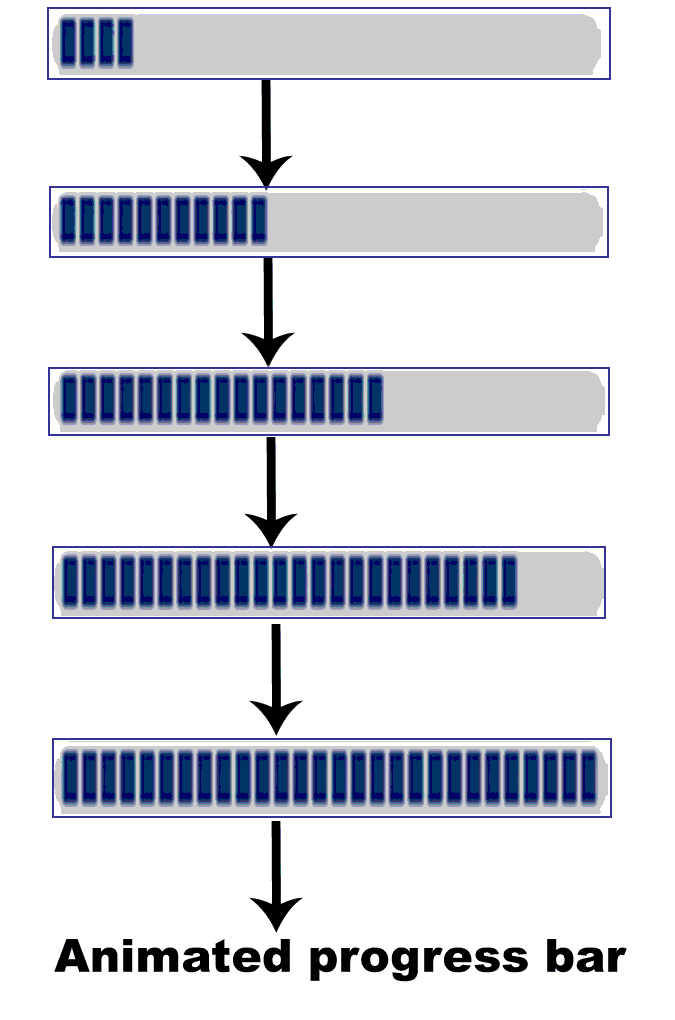
Creating a fake progress bar with JavaScript will be secondary method if you try this method once, because you need a fake one not a real.The way we are going to use now must be the easiest way. If you already know how to animate using Imageready then I am sure that you know how to do, if not then take a look at the image, here we shall call the blue boxes as Progress bar on the following steps though its a fake one. Now I am sure that you have figured how does it works. Lets start,
      • Run Photoshop.
      • Create a new transparent image (150x50px)
      • Draw a small, blue box using Rectangular Tool as shown in the above screen shot.
      You may change the color of the box according to your will.
      Do not bother yourself by drawing new boxes each time, as it is loss of time and they may not be identical to each other, so use Alt+Left Click and drag forward to make identical boxes.
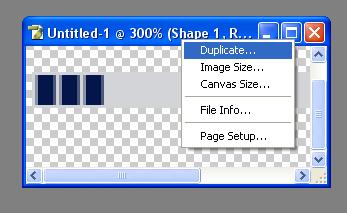
      • After creating few such boxes, duplicate the image by right clicking on the title bar of the image as on the screen shot.
      • Merge the layers of the duplicate image.(Use Shift+Ctrl+E shortcut)
      • Now left the merged one and start working on the another one.
      You may ask,"What working?"
      The work is expanding your Progress bar, we need several more images for our Progress bar to complete, isn't it?
      • Use Alt+Left Click again and drag forward to add other blue boxes to expand the Progress bar.
        Following the steps up to here, I think now you are aware of the concept we are using. That is,"Expand the Progress bar > Duplicate the image > Merge the duplicated one > Expand the Progress bar again".
        Now, your job is to expand the Progress bar till the end. Just use the concept above and remember each time you merge the image, the progress bar should be expanded a while, the expansion of the progress bar can be according to your will.(i.e. how speed you want your progress bar completed)
        Let us consider, we ended the Progress bar with 5 different(merged) images as on the screen shot below.(click to enlarge)

         
        • Create a new image of same size(150x50px).
        • Now select Move Tool from the Tools window.(or press V)
        • Drag and drop the merged images just one above another in ascending order.
        Didn't get? Do it as below:
        • First drag and drop the First step image.
        Here the First step image is the first merged image of Progress bar.
        • Again drag and drop the second one just above the first one....and so on.
        It will form an individual image with several layers. Here the layers are the images of the Progress bar we created by merging the small blue boxes in previous steps.

        Proceed to Animating
        Congrats!! You successfully completed the steps in Photoshop and now its time to animate our Progress bar using ImageReady.
        • Just click on Edit in ImageReady icon at the bottom of the Tools window.
        • Go to Window and click on Animation.
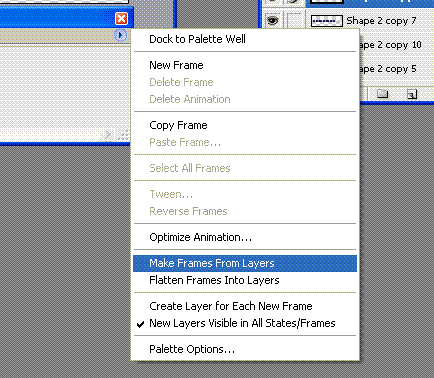
        • Click on the small arrow button at the top right side of the Animation window and click on Make Frames From Layers option.
        You are done!! Click on the Play button at the bottom of the Animation window to check the result.
        Does it works ?
        If yes then, Go to File and select Save Optimized option to save the image.
        If no then, Go to the top of this post and start reading again. Thank you.

        Guest Post in PC Hacks

          Sabtu, 25 Desember 2010

          Analyzation of a Blog, A Newbie's Analyzation

          I don't know if this is the right way to start a review, in this post I am trying to review a blog.
          Needless to say traffic is a vital word for a blogger, so the traffic made me to write this one.


          I am talking about RHA(Rafay Hacking Articles). If you are also a freak like me then RHA might not be a new word for you.
          Now I suppose that you already know RHA and you are also a regular reader of RHA like me then, I am asking you to remember a post by Rafay published in November 2010 about linking the webmasters with low PR.............
          Can you remember?
          If yes then ok, if no then take a look here.

          Now you are aware of the main motive of this post. It is difficult to survive as a newbie blogger in the network. NewbiesWay is neither a blog with 200 unique visitors nor with Page Rank 1 as the requirements of the post and it is new too but I decided to give it a try, lets see if it passes the exam or not.

          What is RHA ?
          Hmm.... if you are asking this question before visiting RHA then you are a stupid but if you are asking after visiting then you are the king of stupid. Let me brief, RHA is a tech blog where articles are published in categories Ethical Hacking, Internet Security, etc and many more.

          About the Author
          The main author of the blog is Rafay Baloch, computer engineer whose nationality is Pakistan. Except RHA he is owner of techlotips.com and his articles can be found in other blogs like MBT. He also published a book A beginners guide to Ethical Hacking this year which is focused in all newcomers.

          Popularity and Traffic
          If you googled keywords such as ethical hacking and security, Rafay, hacking articles, you will find rafayhackingarticles.blogspot.com in the first page(look at the screenshot below). That means there is no need to mention more about the popularity of the blog. Talking about traffic of the site then it is a PR 4 blog with 10000 and more unique visitors per day & more than 13000 RSS subscribers.

          Why should I visit RHA?
          You are emperor of stupid if you are asking such question now. If I gave all the answer then what will you do ? You will remain a newbie for your whole life. Why don't you visit yourself and find the goddamned answer ?

          At last
          Now, I am sure that you visited RHA and if not then you will visit after finishing reading. RHA is a PR 4 blog which is popular with high ranks among the search engines even without a premium domain, this may be a point inspiration for every mother's son(like me) who wants to be a successful blogger and a loud slap for the one who says that it is necessary to get a premium domain for higher rank in search engines and to gain popularity among the visitors.

          Jumat, 17 Desember 2010

          Create Own File Server with HFS

          Sharing files over internet can be done with many file sharing sites over the internet. There are many site with free file sharing service. But we don't like many of them coz of annoying ads, surveys, limitation in file size & btw you need to upload file to their server at first which may be difficult in sharing files with large sizes.
          Files having larger size like 100, 200 MBs are very difficult to upload in the network where I am located. I searched that if there is any way for instant file sharing. After wandering sometime I found a freeware called HFS, I think it will help you too..

          • It is very easy to use.
          • No need of installation.
          • Small in size.
          • Download and check more about HFC here

          How to use?

          • Download & run hfs.exe
          • You will be asked to something to conform, click on Yes.
          • Now, Change the port number to 80 by clicking the on the Port tab at the top.
          • Drag and drop the file you want to share.
          Don't forget to check the ip of the server computer
          Now you finished the work in server, follow the steps in the client computer to download the shared files.
          • Go to browser and type the IP of the server and hit enter.
          • You will see list of file shared in server, click to download.
          Enjoy !!

          Selasa, 14 Desember 2010

          Share WebCam Over Home Network

          Using IMs like Yahoo, Gtalk etc may be the primary method to share web cam over Internet but it may not be perfect method for all time. Here I am going to show an easy method to share your web cam over your Home network & browse it from anywhere over the Internet.
          Follow the steps below:
          • Download webcamXP for your OS here and install.
          • Now run webcamXP(Go to Start > Program > webcamXP & click on webcamXP)
          • You will be asked to select the version which you want to run, select the free version & click OK.
          • Right click on the field (as shown in the screen shot) to select your Cam.
          • Go to Web / Broadcast section.
          • Click on Disable, change the port 8080 to 80 and click on activate.
          You are done!!!
          Now to check if it works or not follow the steps below
          • Go to your browser window
          • Type the IP of of your computer and hit enter.
          Follow the same process to view the cam remotely.
          Damn, it works.

          Kamis, 09 Desember 2010

          Convert TXT file to JAR ebook Online For Free

          If you are habitual of reading books in mobile(like me) then this post is dedicated for you. There are many types of ebook formats available for mobile but most of them need readers.
            Problem occurs here that there are not readers available for every mobile & sometimes you may get an incompatible format of the book which is worthless in your mobile reader.


          This is for online conversion of .txt file to .jar format for reading in mobile.
          http://qioo.de is a site offering you free conversion of text files to mobile readable jar ebook formats compatible in java supporting phones.
          Visit http://handybibliothek.qioo.de/qic.php browse the text file and click on Create.. to convert
          Save the generated .jar file and push it into your mobile to use it.
          Enjoy !!

          Sabtu, 04 Desember 2010

          Three Easy Methods to Send Message over LAN

          To Send message direct over home network at first you must activate the feature in both computers which is always inactive by default.

          • Go to Start > Run
          • Type services.msc and hit enter
          • Search for Messenger at the right side of the opening window.
          • Double click on Messenger this will open the properties.
          • Select Startup Type to Automatic and click on Apply
          • Now click Start. 
          • Wait until the service is activated & click on OK.
          (Follow the same process to activate Messenger service in other computers also.)
          Use any of the methods below to send message over LAN

                 Method One
          • Open Command Prompt (Go to Start > Run type cmd & hit enter.)
          • Now type net send (ip of the computer) message  and hit enter. (view image)
          Your message was successfully sent......

                 Method Two

          Copy and Paste the following lines in Notepad and save as anything.bat
          @echo off
          :A
          Cls
          echo MESSENGER
          set /p n=User:
          set /p m=Message:
          net send %n% %m%
          Goto A

          Open the anything.bat and type the IP of the pc, hit enter, type message and again hit enter to send. 
               
                Method three
          • Download NTMessenger here and run.
          • Type the name of the workgroup computer in the To (Or select To all option to send in all computers in that network ) 
          • Type message and click on Send button at the left.

            Enjoy :P