Hello all,
 After a long break finally I managed to write. I know you have already figured out what is this about. I don't have to mention that this is all about money, we are doing all these things in our daily life for the money. Don't you agree?
Lets come to the point. When I was playing as usual I came across an awesome Firefox add-on this morning. I found it very useful for me(hope you too) and thought of sharing it.
I am talking about PriceBlink. It compares prices of the product you buying online with the same product on another online shopping site. It also notifies about available discount coupons at the moment you visiting those sites. You can simply save your money and time while shopping online.
That was a small review on PriceBlink, now just try it yourself. Click here and add it with your Firefox browser by clicking Add to Firefox button. Restart the Firefox and you can see a symbol at the right bottom of the Firefox window as shown in the image.

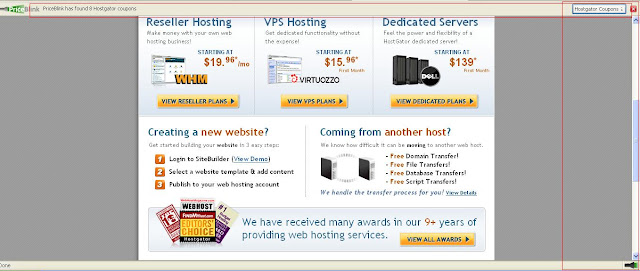
Now each time you visit internet marketing sites like Amazon, Godaddy, Hostgator you will see something as illustrated in the image below. (click to enlarge)
If you have any difficulties on installing or using PriceBlink then feel free to ask through the comment section. Enjoy and don't forget to subscribe NewbiesWay. Thank You
 After a long break finally I managed to write. I know you have already figured out what is this about. I don't have to mention that this is all about money, we are doing all these things in our daily life for the money. Don't you agree?
Lets come to the point. When I was playing as usual I came across an awesome Firefox add-on this morning. I found it very useful for me(hope you too) and thought of sharing it.
I am talking about PriceBlink. It compares prices of the product you buying online with the same product on another online shopping site. It also notifies about available discount coupons at the moment you visiting those sites. You can simply save your money and time while shopping online.
That was a small review on PriceBlink, now just try it yourself. Click here and add it with your Firefox browser by clicking Add to Firefox button. Restart the Firefox and you can see a symbol at the right bottom of the Firefox window as shown in the image.
Now each time you visit internet marketing sites like Amazon, Godaddy, Hostgator you will see something as illustrated in the image below. (click to enlarge)

If you have any difficulties on installing or using PriceBlink then feel free to ask through the comment section. Enjoy and don't forget to subscribe NewbiesWay. Thank You


